Tracking & Budgets
Expanding from a construction plan, the tracking and budget functioanlity of Construction Planner is designed to be used as the next level of plan detail along with sub-contractor estimates and spend. Once you have detailed out a constructiona Plan, the next level of budget and detail can be built out in conjunction with the Takeoff sheet to build a complete budget.
Note that any changes made to the Construction Plan will not automatically make changes in the Tracking and Budget sheets; depending on how you build your tracking sections and rows.
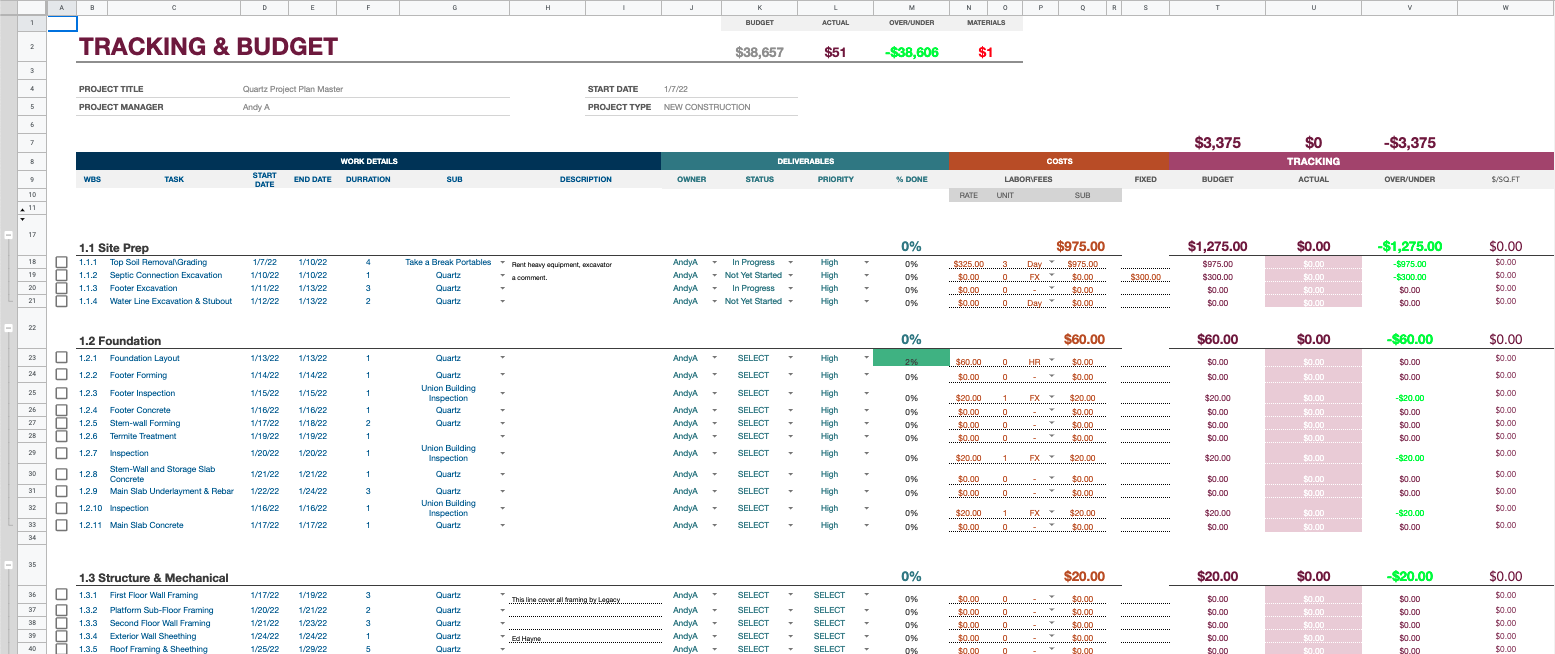
Setting Up Sections
Start detailing out your plan by defining your sections and rows. You can create sections and rows independent of the Construction Plan, but that is not recomended; your Tracking sections and rows should match your construction plan. Although at the moment there is no functionality proveded for doing that automatically, there is a simple way of doing this with some sheets formulas which we wil cover down below.
To get started, use the Extensions/Construction Planner/ Tracking & Budgets/Add Section menu. This will add template sections to your tracker. Next title each section so that they match what is on the construction plan sheet, including the WBS number. In the first row and column of a section, enter an “=” sign to tell Sheets you are inserting a formual and then got to the Construction Plan sheet, select the coresponding cell, and hit “Enter” on your keyboard.
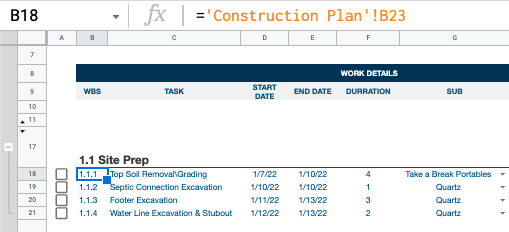
In the first exampe below, the cursor is on cell B18 and we mapped a formula as described above to pull values from the Construction Plan sheet, cell B23. Now that cell in the Tracker & Budgets sheet matches the coresponding cell for that sction in the Construction Plan sheet with the value 1.1.1.
Note that for a number of reasons the rows in the Construction Plan and Tracker & Budget sheets may not align exactly, but the formula above handles the issue.
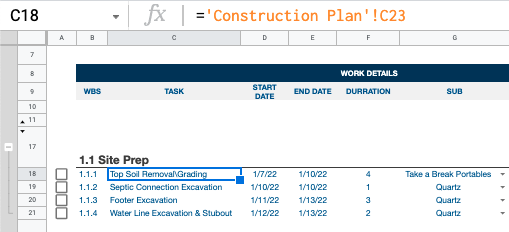
Next in the Tracking & Budgets sheet, copy CTRL-C and paste CTRL-V the cell we just mapped into the “TASK” cell next to it; See second example. Now that value is being pulled from the coresponding cell on the Contruction Plan sheet showing the value ‘Topsoil Removal\Grading’. Repeat the copy and paste steps for Start Date, End Date, and Durration columns. Once you are done, the first row in section ‘1.1 Site Prep’ will be an exact match for what is in the Construction Plan sheet.
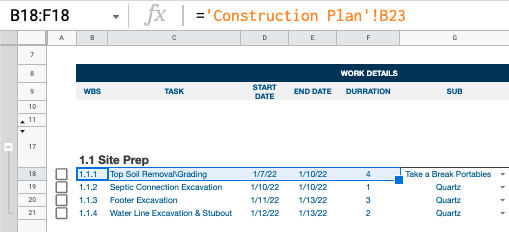
Now look at the third example. Select the WBS, TASK, START DATE, END DATE, and DURRATION columns and copy. Finally select two or three rows below and paste. As you can see, those rows now match the Construction Plan sheet. From here repeate these steps for each section to fully map your Tracker & Budgets sheet to the Construction Plan.
IMPORTANT!
Construction planner expects a numeric work break down structure in column B "WBS Number",
see example above. You can create these numbers in a number of ways. Enter by hand, use a formula,
or use sheets standard functionailty for creating a series.
Visit Creating Sheets Series