Construciton Plan
Overview
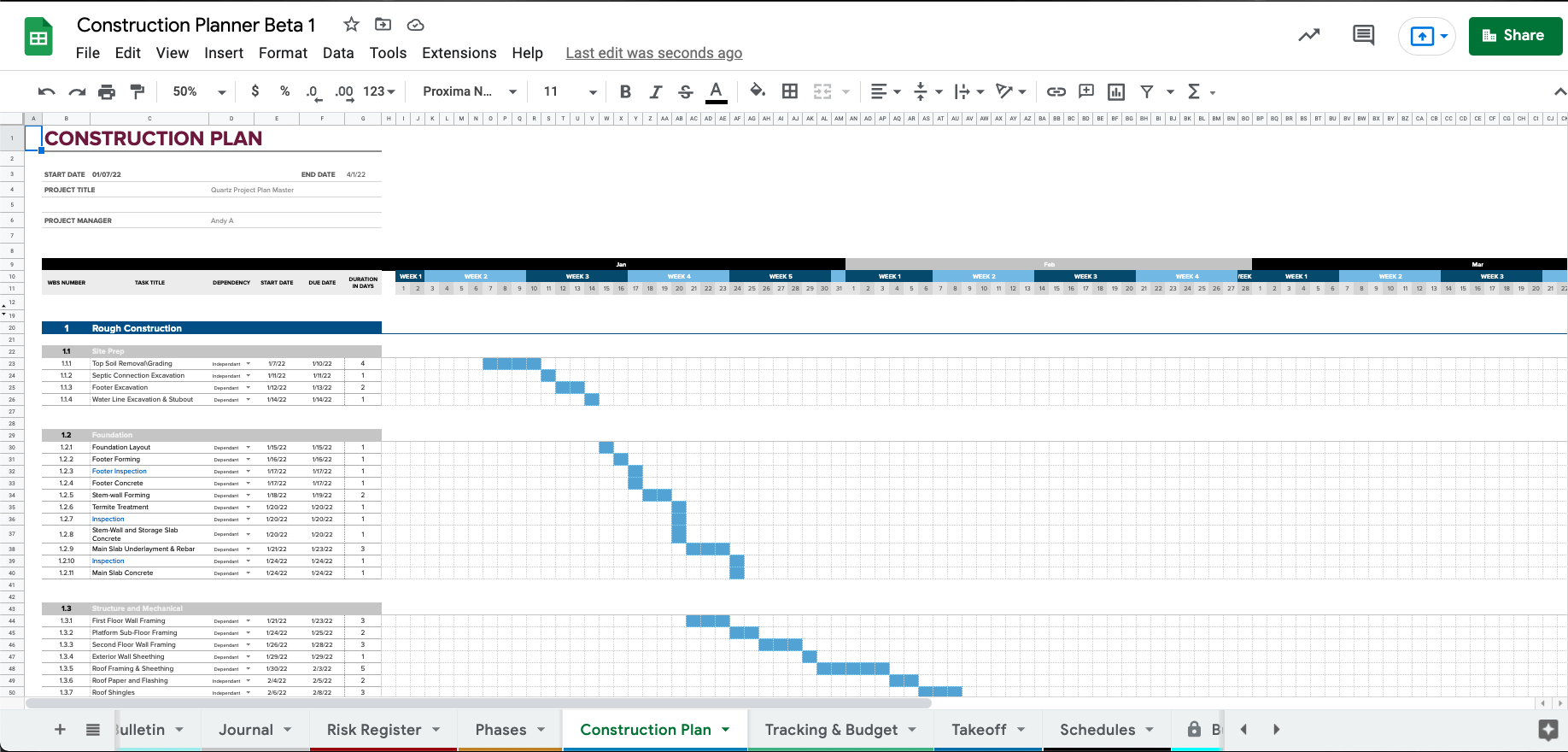
The Construction Plan sheet is where you would define your projects overall schedule. To get started on a new project, set the Start and End dates for teh project in the Projects sheet. From the Constructiona Plan go to the Extensions/Construction Planner/Construction Plan menu and click Build Timeline. This will build an initial timeline with months, weeks, and days based on the project’s Start and End dates.
Note that currently only a two year project is supported. If your project start and end dates are greateer than a two years span, the time grid will not build correctly.
Create the Timeline
Based on your projects Start and Endates, Construction Planner will build a month\week\day timeline. To do this, go to Extensions/Consutruction Planner/Construction Plan/Build Timeline menu. Once you confirm, the new timeline will be built.
Please note that you can do this again anytime the project dates are changed for whatever reason.
Building Your Schedule
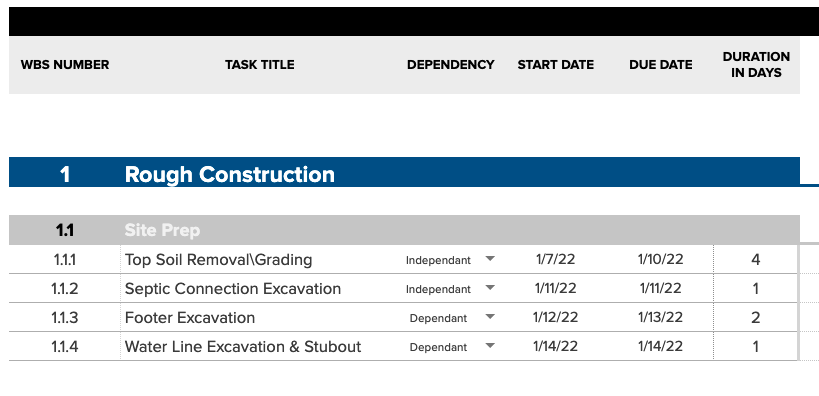
The functionality of this sheet is a basic project plan with Gantt chart. As a reminder, Construction Planner is fundamentaly a spreadsheet with automations, so you would still use it as a spreadsheet but with some automatiosn to help save you time. Construction planner provides three functions to help speed up building out your plan located under Extensions/Consutruction Planner/ menu.
- Add Plan Section - Adds a major section like “1 Rough Construcion” in the example above.
- Add Plan Sub-Section - Adds a next level section like “1.1 Site Plan”
- Insert Row(s) - Inserts ne or more rows within a sub-section.
Because the automation performed by Construction Planner are within sheets. you can use ctrl + z to reverse the steps automated through a function. As an example, if you add a section, pressing
command+zseveral tmes will undo the addition. Same applies for sub-section and rows. Alternately, you can select the rows of a section, sub-section, or row and delete them using normal sheets functionality.
Define Sections & Sub-Sections
Start your plan by defining your sections and sub-sections. You can be a detailed as desired, there are no practical limits to sections, sub-sections, and rows.
IMPORTANT!
Construction planner expects a numeric work break down structure in column B "WBS Number",
see example above. You can create these numbers in a number of ways. Enter by hand, use a formula,
or use sheets standard functionailty for creating a series.
Visit Creating Sheets Series
Task Time Entries
Construction planner performs certain automations based on what you select in the “DEPENDENCY” column. Depending on what you select, a formula is entered for either Start Date or End date with in a section.
| Dependency | Start Date Result |
|---|---|
| Independent | No formula, value will be the end date of the prior item. |
| Dependent | Formula, pointing to end date of the prior item plus 1 |
When setting the first item at the top of a section, the last item of the prior section will be found and the end date of that cell will be used.
Limitations
The realtime Gantt chart drawing functionality is limited to single row changes, meaning that as you build your schedule not all changes will result in the chart updating. To fully build the Gant chart go to Extensions/Consutruction Planner/Construction Plan/ReDraw Gantt menu. This will fully draw all teh chart rows.
Please note that do to Google Apps Script limitations, this process takes several minutes. We are woking on improving the performance of this functionality.